 LEMO FM
10 Apps to Download First on Your iPhone Duo
The most worthwhile part of spending time on a new phone is not just migrating photos, but re-selecting the apps you want to open every day. This list of iPhone Duo apps picks out 10 choices that perform their own duties, starting from working, reading, creating, and relaxing. Install what you really need first, and then fill it up slowly.
Translated automatically from the Chinese original. Read the Chinese original
 LEMO FM / IPHONE DUO
Screenshots show the app interface in this language.
Start with your needs, not the download charts
This is a list of scene recommendations compiled by the LEMO FM team, including our own products; the numbers represent reading order and do not represent objective rankings. We care more about whether an app can solve a specific problem and whether you are willing to continue using it.
As of October 19, 2026, Apple’s official website indicates that iPhone Duo will go on sale on October 23. This article is for collection before the new phone is received and for reference after the new phone is received. It has not conducted a horizontal test on the real iPhone Duo, nor does it equate the downloadability of the ordinary iPhone with the completion of special adaptation for the folding screen. Please check the latest compatibility and version notes of the App Store in your region before downloading.
01 / LEMO FM: Make room for quiet
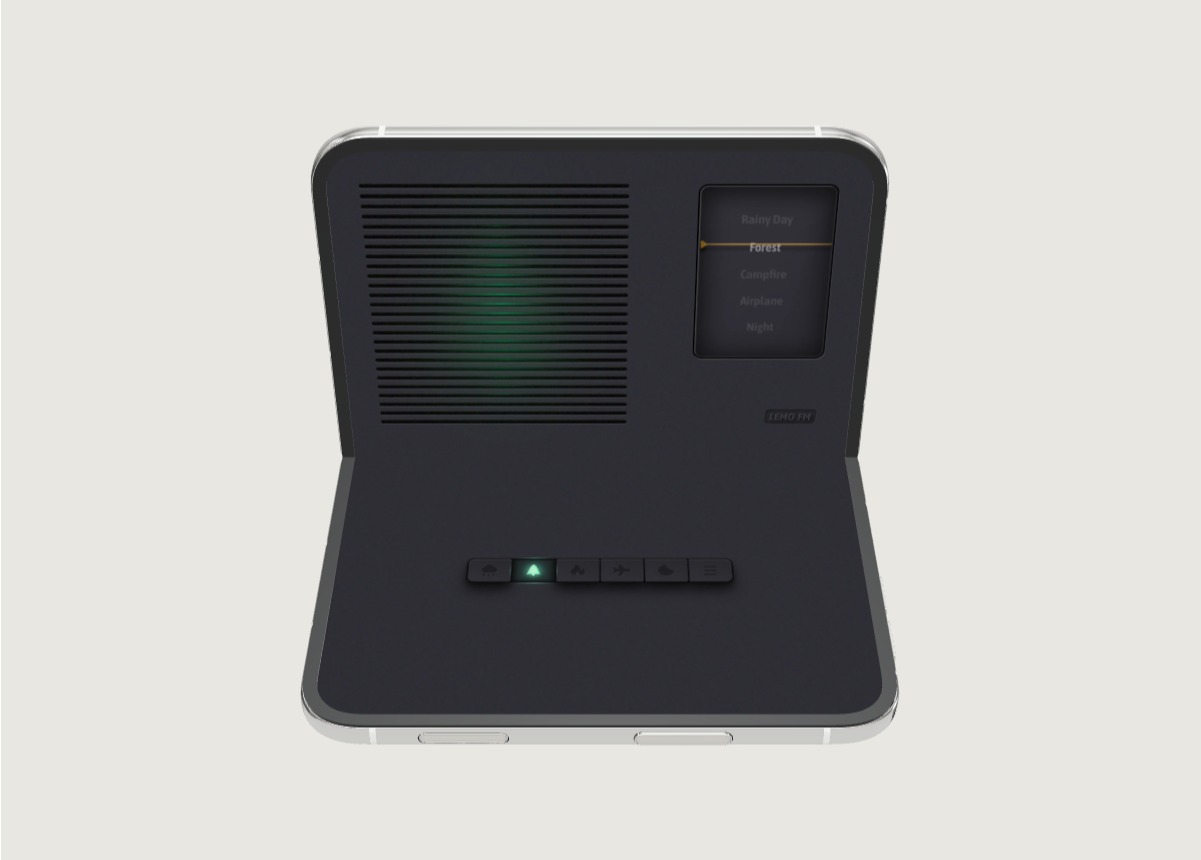
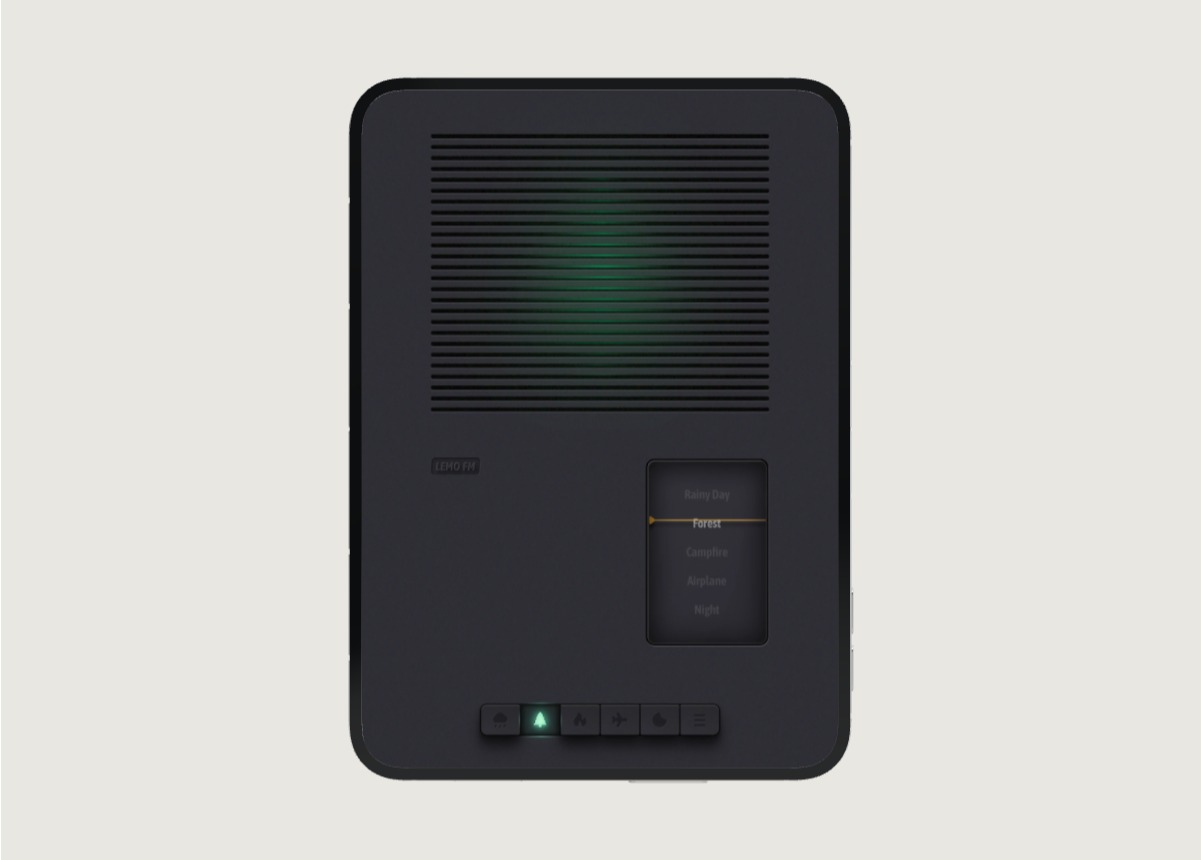
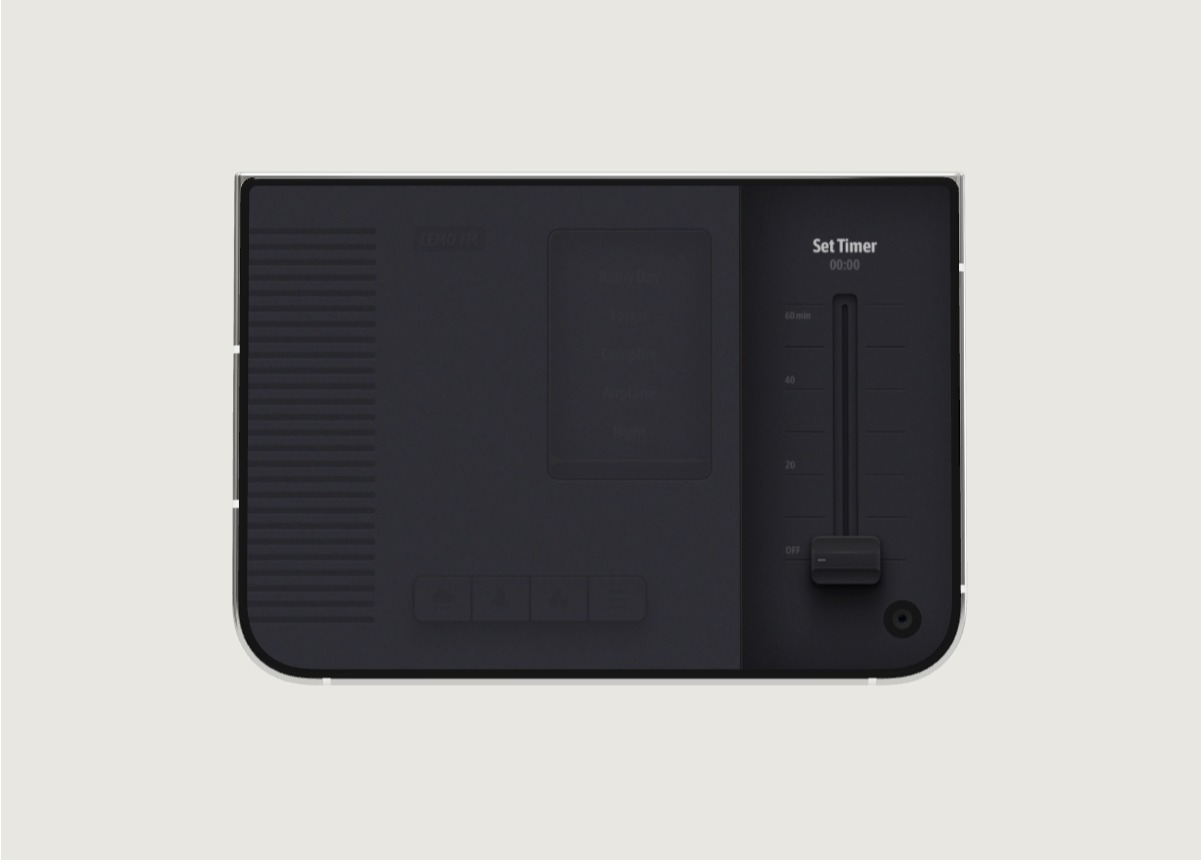
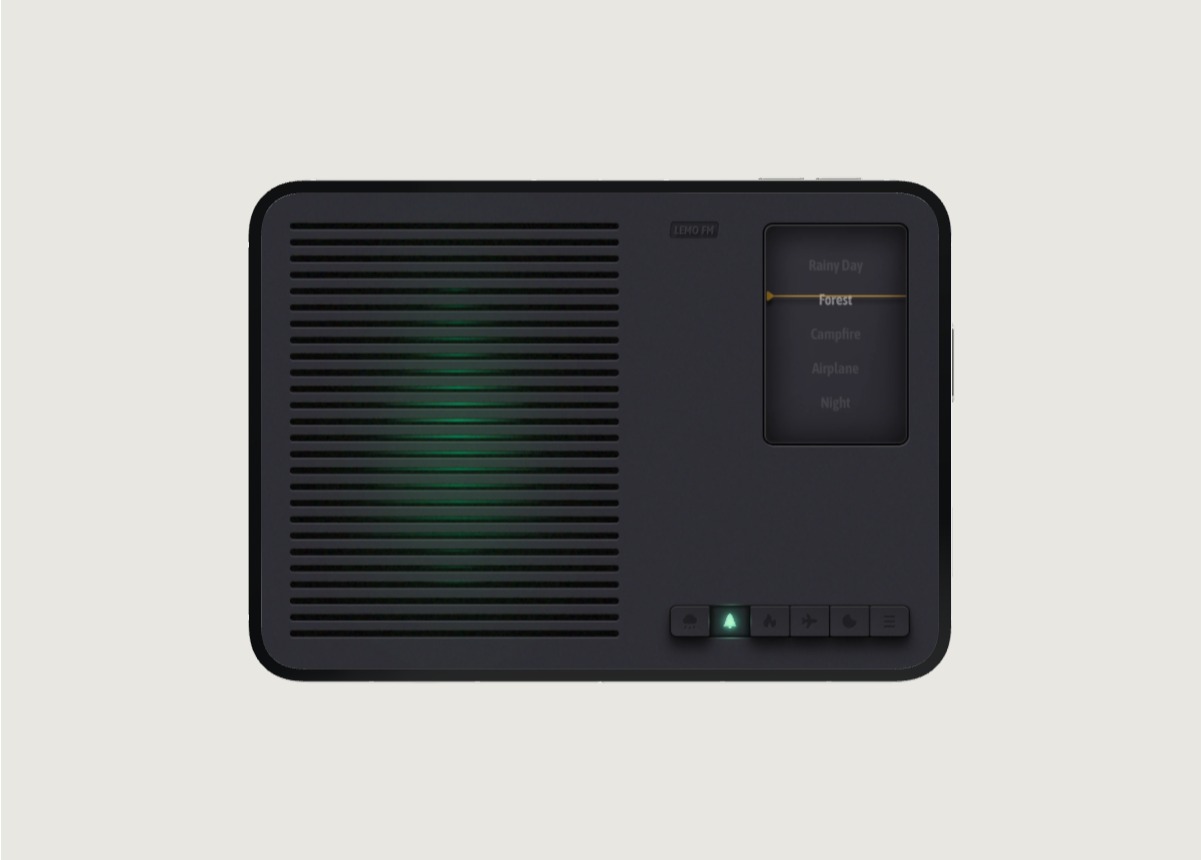
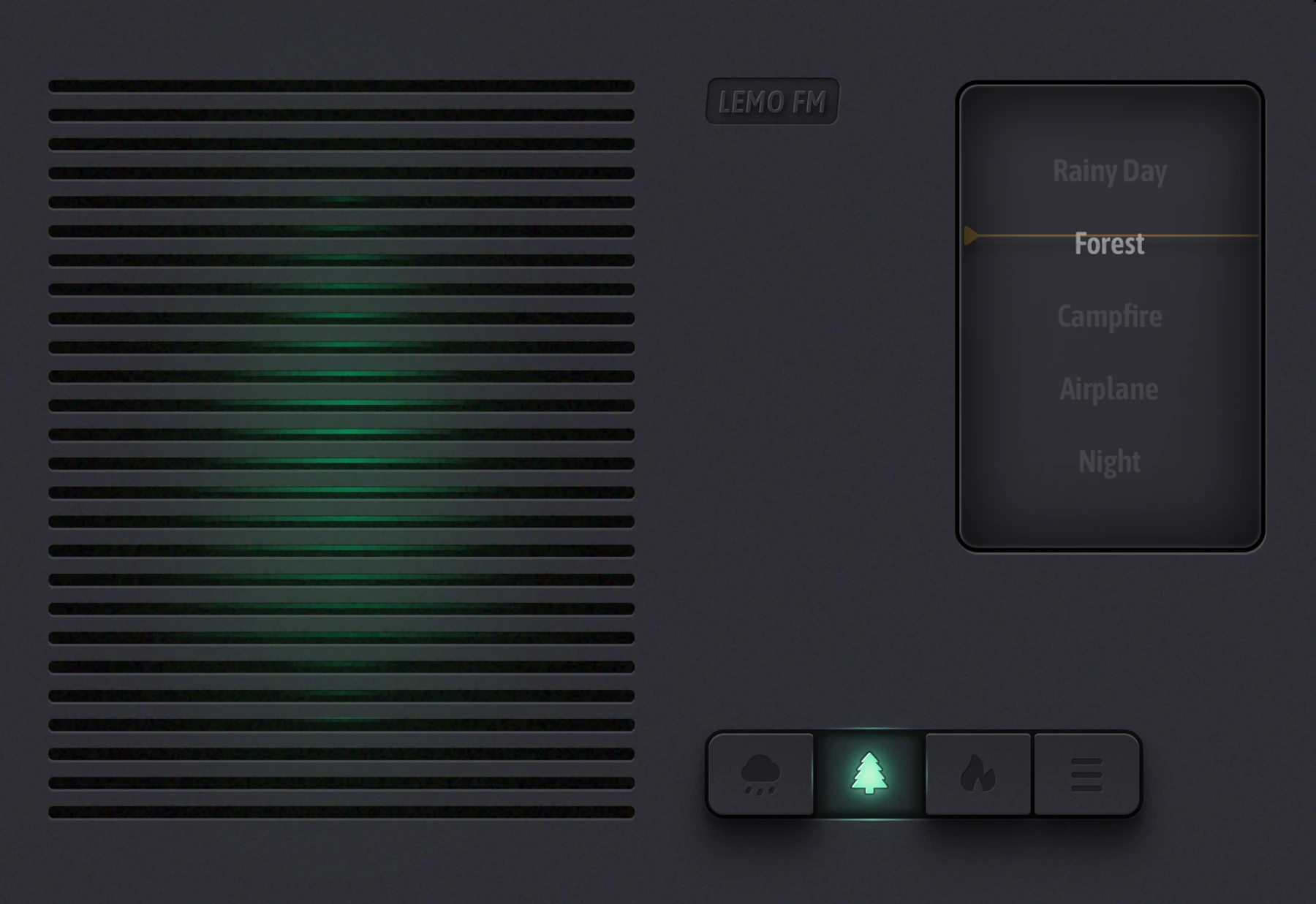
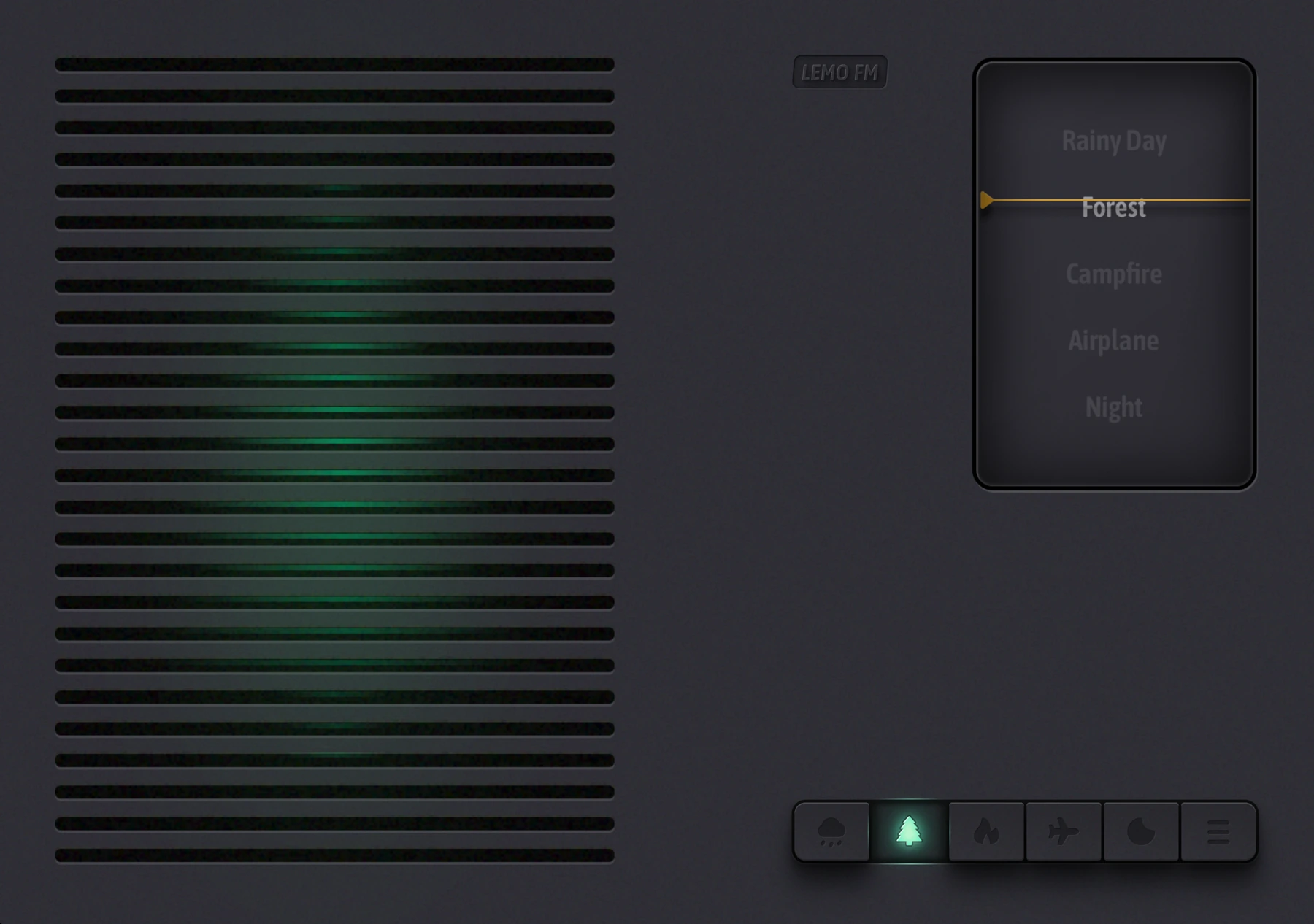
If you don’t want to pick out songs again and again before work, start with LEMO FM. It uses a radio-style interface to play natural ambient sounds, suitable for setting a simple sound background for writing, reading or resting. You can listen to five soundscapes on the official website: rainy day, forest, bonfire, airplane and night.
When you use it for the first time, choose a sound you feel comfortable with, listen to it at a lower volume for a few minutes, and then decide whether to put it on your commonly used home screen. The reason for recommending it is that the initiation ritual is simple enough; it is not a tool to complete a task for you, nor does it need to be endowed with healing effects.
02 / Notion: Keep your project notes together
If your work is scattered among meeting notes, links, and to-dos, Notion can serve as a data entry. Create a project page first and write down the goals, relevant links and next actions. It is easier to stick to it than building a complex template at the beginning.
It is suitable for people who are willing to organize content. If you just want to jot down a few sentences temporarily, you can also use the system memo first instead of migrating the entire workflow for a new phone.
03 / Todoist: Know what to do next
Todoist is great for managing tasks and to-dos. It is recommended that you only write down three things that really need to be done on the first day of your new phone, and change vague tasks into actions: for example, change "travel preparation" to "confirm hotel check-in time."
If you often forget little things, a to-do list is more practical than packing a few extra tools. Set dates for items with clear deadlines and keep other items on the list to avoid each item becoming an urgent notice.
04 / Forest: Set aside some screen-free time
Forest designs the process of concentration as a tree-planting experience, suitable for people who like visible progress. You can start with a short period of time so that "sit down and do things" has a clear starting and ending point.
If you use task lists or ambient sounds at the same time, first confirm whether what you need most is timing, task reminders, or sound companionship, so as to avoid spending more time operating the app in order to focus.
05 / Apple Books: Keep your first book handy
Apple Books provides access to e-books and audiobooks. It is easier to start by picking a book that you already want to read than collecting dozens of books; just read a section every day and write down a sentence.
It may already be on your device, no need to download it again. The content of books, stores and audiobooks will vary by region, so first check whether the content you want to read is available.
06 / Lightroom: Give your photos the finishing touch
Lightroom mobile is for anyone who wants to further tweak their photos. Practice the three basic steps of cropping, exposure, and color before considering more complex edits. You don't have to apply the same filter to every photo.
If the system photo editing is sufficient, you can postpone the installation. Leave it to travel photography, portrait adjustments, or creative tasks that require consistent tones, and it will be easier to appreciate the value of the tool.
07 / Canva: Turn an idea into a shareable image
Canva is great for creating posters, invitation cards, and social media graphics. Determine the purpose and size of the work before choosing a template; replacing copy and checking text levels are often more important than stacking decorations.
For the first time, you can make your own travel itinerary card. When it comes to commercial use of templates, pictures or fonts, use them according to the license of the corresponding material; some content and functions may require payment.
08 / OneDrive: Give your files a home
If you work on files between your phone and computer, OneDrive can serve as a cloud storage portal. First organize a "Current Project" folder and put the files that really need to be moved and viewed to reduce the need to search for attachments in the chat history.
Cloud space, sync settings and native offline files are different things. Before departure, open important files to make sure they are readable, and check account space and sharing permissions.
09 / Google Maps: Find your way around
Google Maps is great for finding places and planning routes in areas where the service is available. You can organize hotels, stations, and places you want to visit before traveling to reduce the stress of temporary searches after arrival.
Map coverage, network access, and some features vary by region. In scenarios such as mainland China, give priority to map services that are available locally and are familiar to you. There is no need to change tools for this list.
10 / Apple Music: A playlist for the journey
Apple Music is suitable for people who already listen to music in the Apple ecosystem. Putting together a short playlist for your commute, walk, or weekend is often easier to find what you want to listen to than browsing endless recommendations.
Music and natural ambient sounds can play different roles: turn on the music when you want to listen to music seriously; try LEMO FM when you want a simple sound background. The music library and subscription rights are subject to regional services.
How can you keep your home screen clear on day one?
Install in three rounds according to "must use it every day - will use it this week - talk about it later". First restore communications, accounts and necessary files, and then add a task tool, a content tool, and a rest entrance. When you really need it, add photos, designs, or travel tools.
Review the usage after a week: Apps that have not been opened can be moved off the home screen. The novelty brought by a new mobile phone will pass, but a clear, easy-to-find, and less-disturbing home screen will always remain.
FAQ
Are all these 10 apps already compatible with iPhone Duo?
This article recommends based on usage scenarios, and has not verified the special adaptation of all apps to the folding screen. Please refer to the latest developer instructions, App Store compatibility information and actual version.
Are these apps free?
Not a unified free list. Different apps may have subscriptions, in-app purchases or paid content, please check the current instructions of the store in your region before downloading and purchasing.
Information verification:Apple iPhone Duo official introduction · LEMO FM store page. Date checked: October 19, 2026.
Editorial approach and corrections →