 LEMO FM
A Simple iPhone Duo Focus Routine: Tasks, Timers & Sound
When you get a new mobile phone, your work may not automatically become smoother. What’s really worth redesigning are the few minutes before you start: knowing what to do, handling notifications, and preparing an environment where you want to be. The following process is also suitable for daily iPhone use.
Translated automatically from the Chinese original. Read the Chinese original
 LEMO FM / IPHONE DUO
Screenshots show the app interface in this language.
Step 1: Reduce a big task into one action
It is difficult to judge when it will be completed when "making a plan"; it is much clearer when "writing the three subtitles of the plan" is completed. In Todoist or a list you already use, keep only the one step you want to take forward this round. Put data in Notions, memos or folders to avoid having to reorganize tools while working.
Write an end condition before you start: complete a draft of one page, check five photos, read a chapter. The clearer the task, the easier it will be to judge whether new ideas that pop up in the middle need to be dealt with immediately.
Step 2: Use focus mode to filter out unnecessary notifications
Turn on Focus Mode in iPhone settings, choose or create a mode as needed, and check the contacts and apps that allow notifications. Reserve ways for important people to contact you, and the rest of the notifications can be read after this period of work is over.
Do not configure all modes at once. Start with the most common work scenarios, use them a few times, and then adjust which reminders you must keep. Menu names and available options may change depending on the system version.
Step 3: Decide what sounds you need during this time
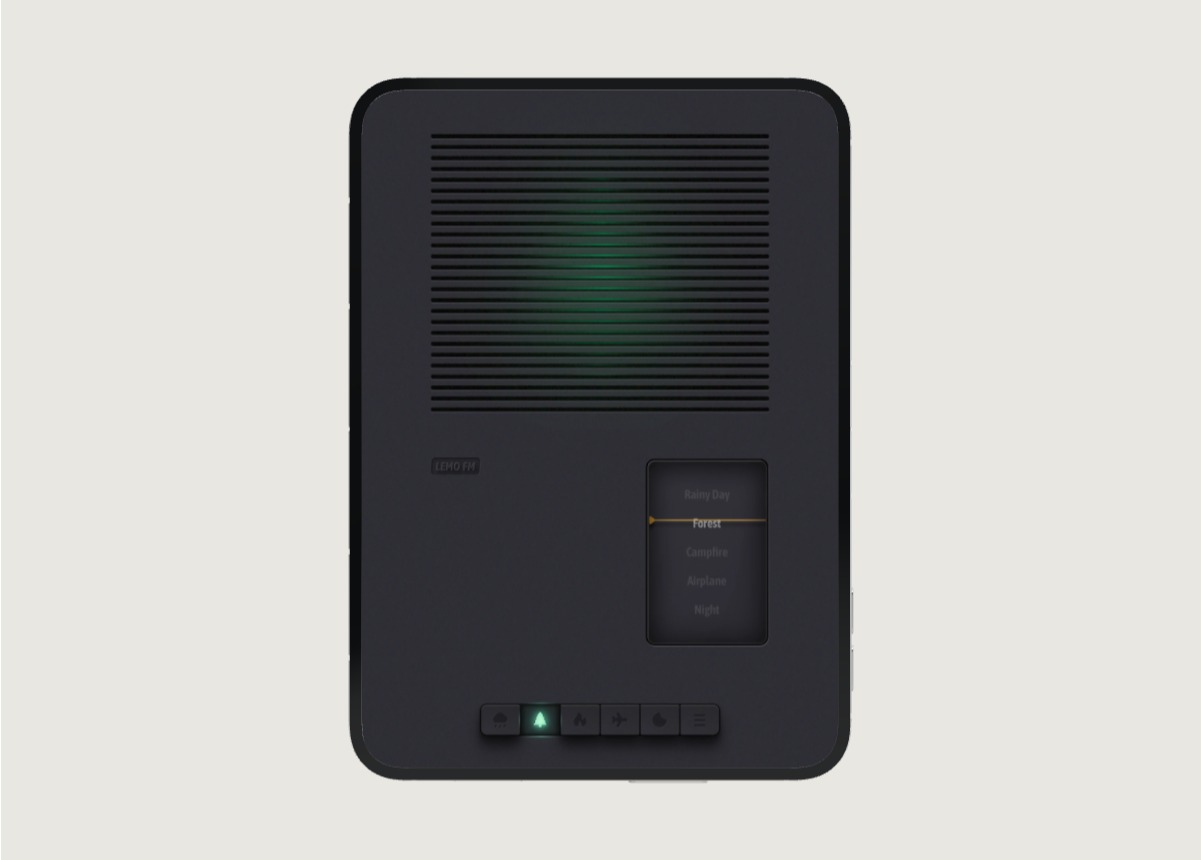
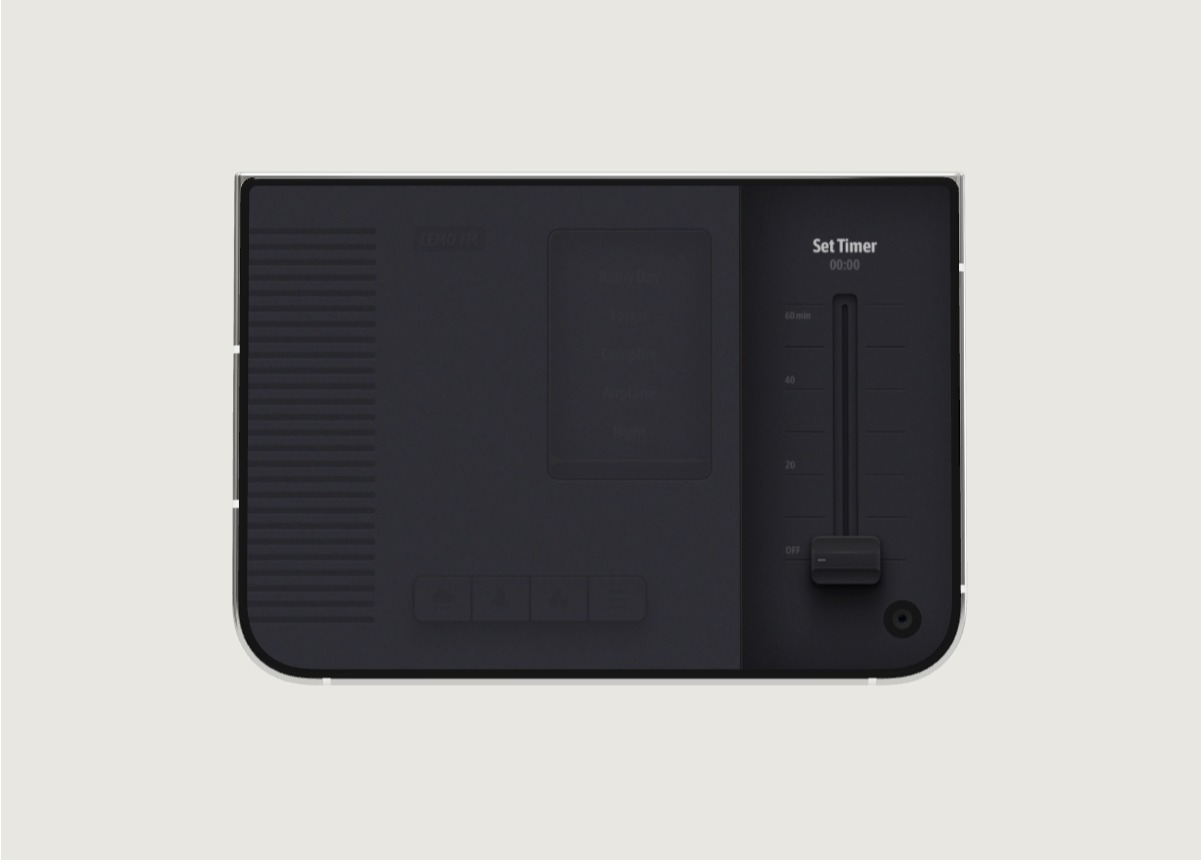
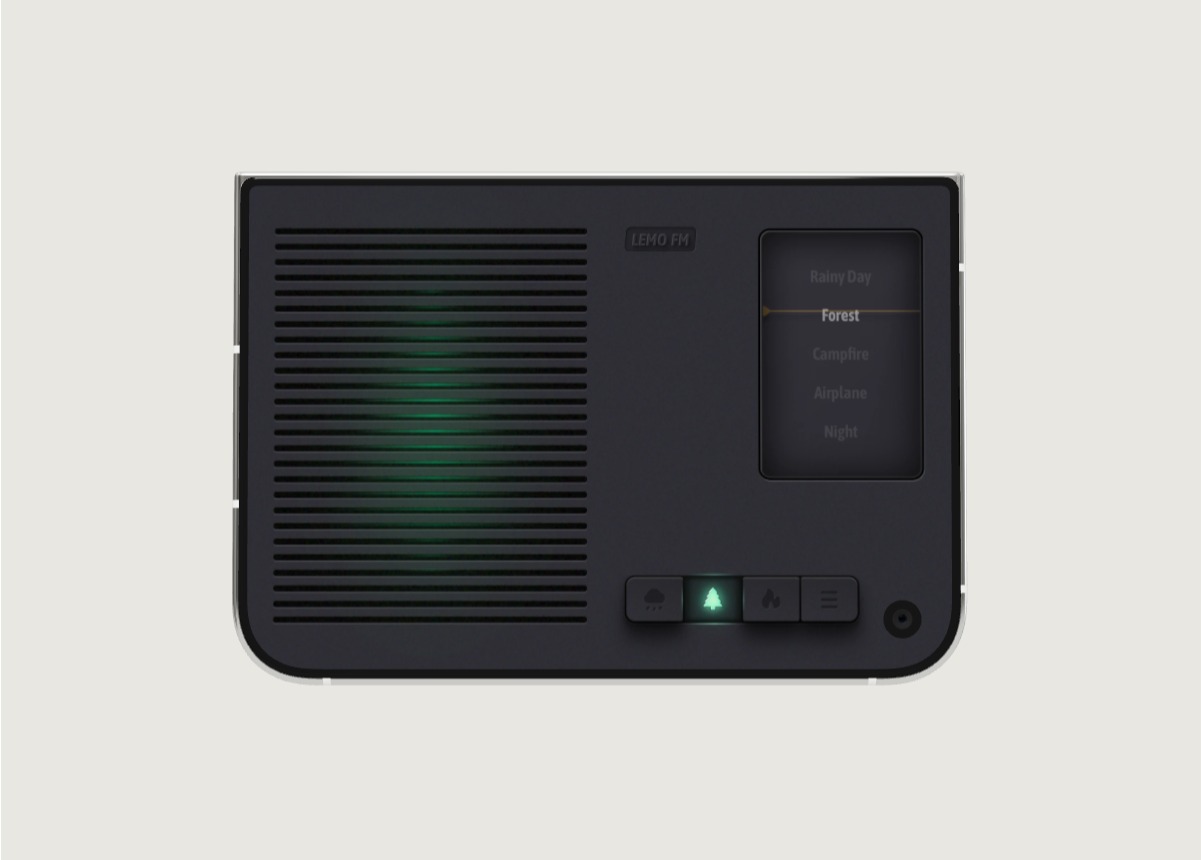
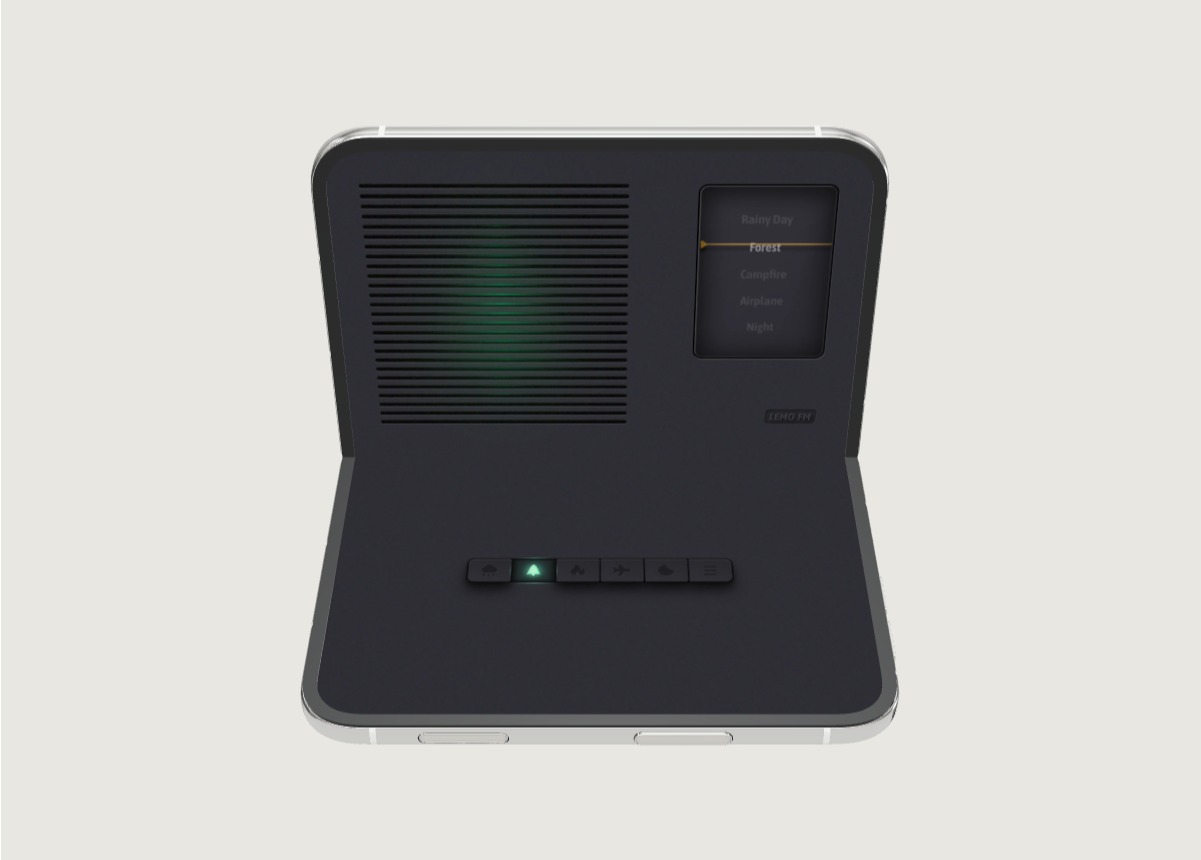
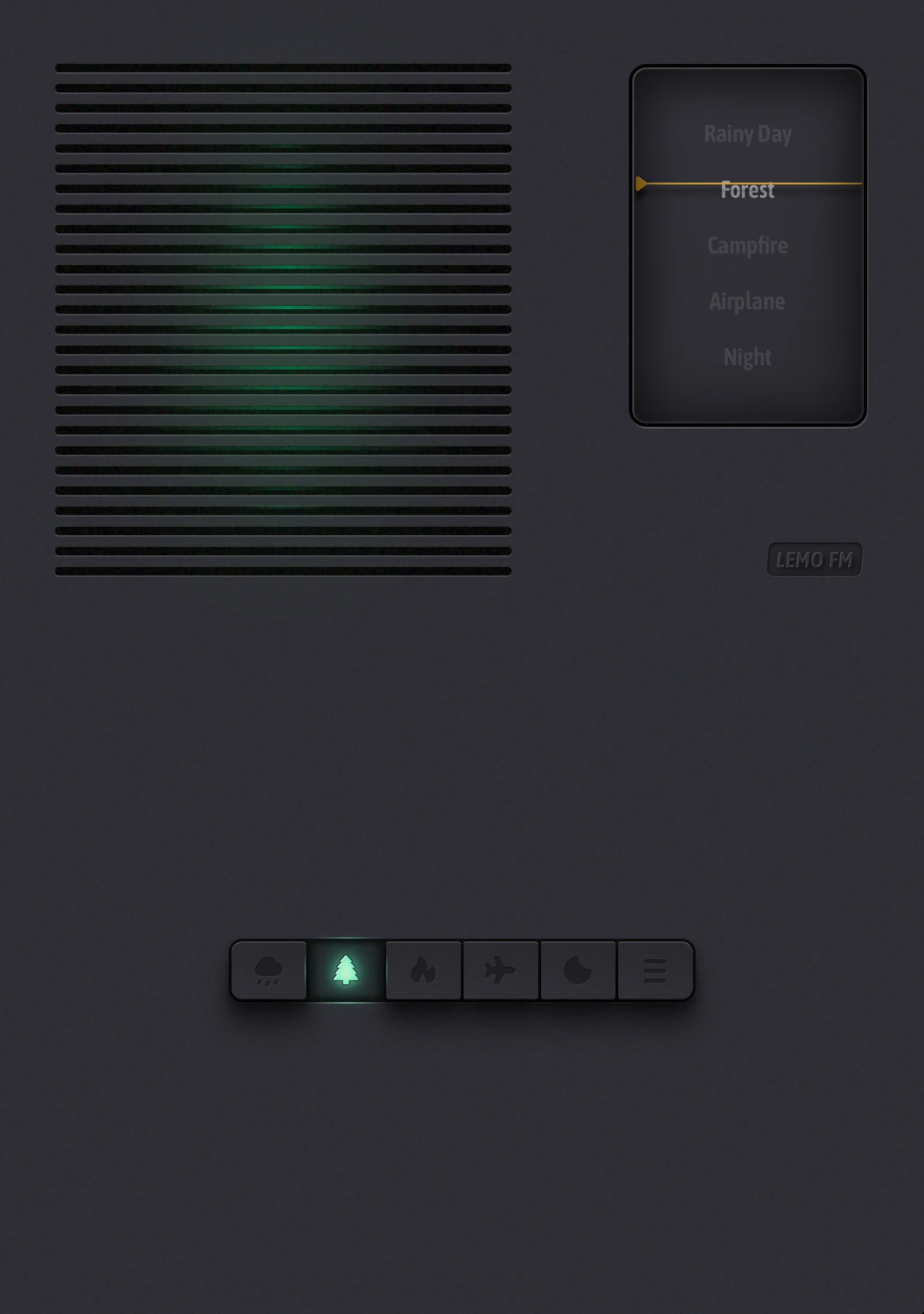
Some people prefer silence, others like a layer of ambient sound that doesn’t require them to follow the lyrics. If you fall into the latter category, you can turn on LEMO FM, choose a rainy day, a forest, or another soundscape you like, and then turn the volume up so it doesn't steal attention.
This step does not require the pursuit of some "most scientific" sound. Use the same small task once with sound and once with silence to compare which one is more comfortable. Turn off the sound when it annoys you; the state of your work is more important than sticking to a certain method.
Step 4: Set only one end reminder
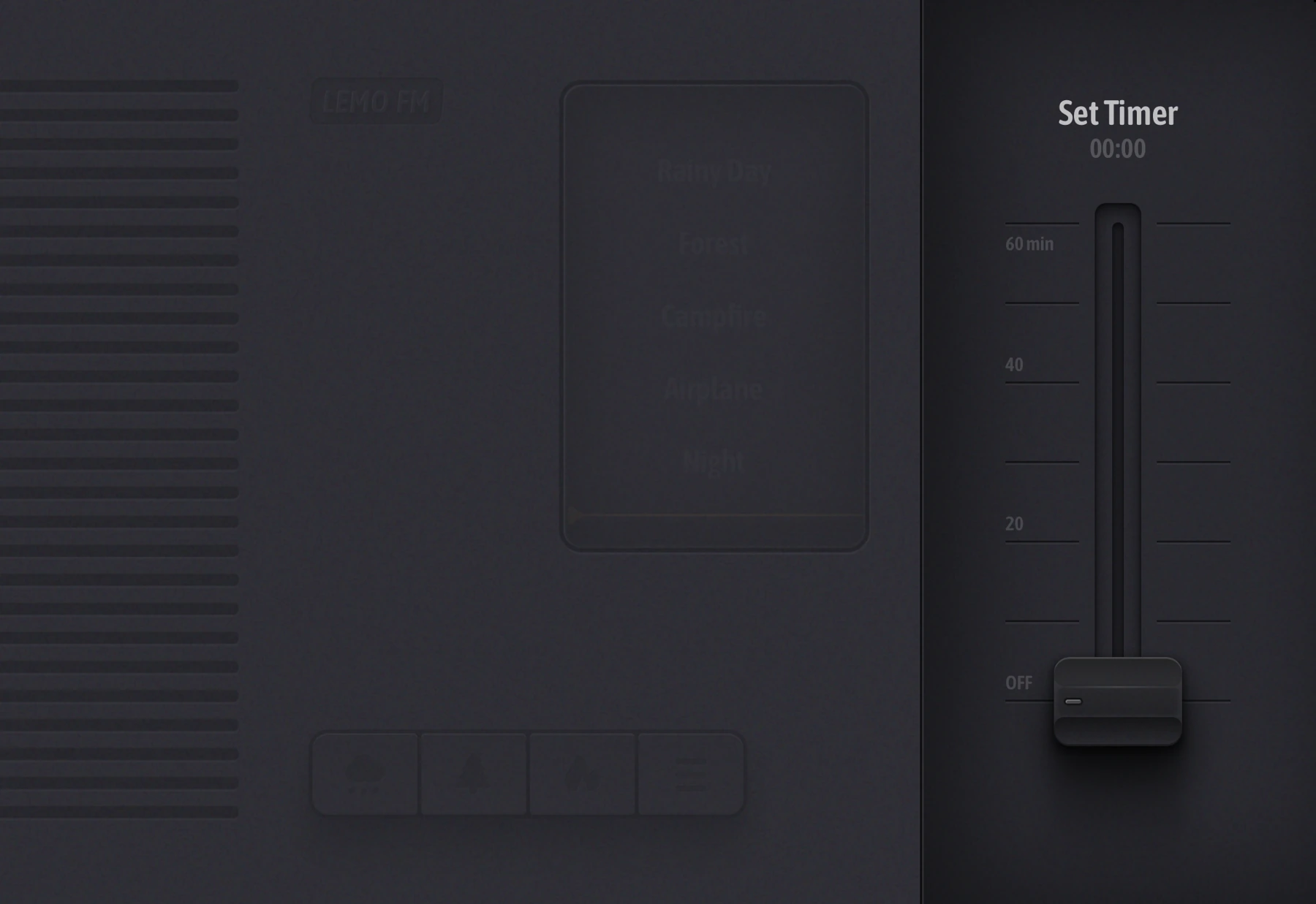
If you want to try the Pomodoro Technique, start with 25 minutes of work and 5 minutes of rest, and think of it as an adjustable schedule. If the task is short, 15 minutes is fine. Just use a system timer or a familiar focus tool to avoid multiple reminders going off at the same time.
If you think of something else in the middle of the task, write down a line of words to "deal with it later" and then return to the original task. When you're done, get up and move around, and record your next steps instead of opening the stream right away.
Simplify your workflow
After trying it three times in a row, ask yourself: Is the task too big, too many notifications, or are you always picking sounds and changing templates? Only by changing one variable at a time will you know what is really useful.
LEMO FM’s role in this process is small: providing an easy sonic background to start with. The list takes care of the next step, the timer takes care of the time, and you decide the pace at which you complete the task.
FAQ
Do I have to download three tools at the same time?
No need. System memo, focus mode and timer can already complete the basic process. When you need ambient sound, add LEMO FM.
Need to have LEMO FM and work apps displayed at the same time?
Side-by-side display is not required as a prerequisite for this approach. The audio behavior after switching apps is related to the specific version, system and audio settings. Please confirm on your own device first.
Information verification:Apple iPhone Duo official introduction · LEMO FM store page. Date checked: October 19, 2026.
Editorial approach and corrections →